
Not every registration comes through the 21POINTS form. Sometimes the club already has its own form, the federation sends you the list, or it all arrived by email and ended up in a spreadsheet. That's what the Excel import is for: a single template that creates courts, categories, teams, players and staff. Fill in only the sheets you need, upload the file and see exactly what will happen before anything is saved.
- 5 SHEETS, 1 TEMPLATE
- PREVIEW FIRST
- CREATES, NEVER OVERWRITES
- UP TO 5 MB
- 1 Download the template
- 2 Fill in the sheets you need
- 3 Upload and preview
- 4 Fix the errors
- 5 Confirm the import
01Open the importer
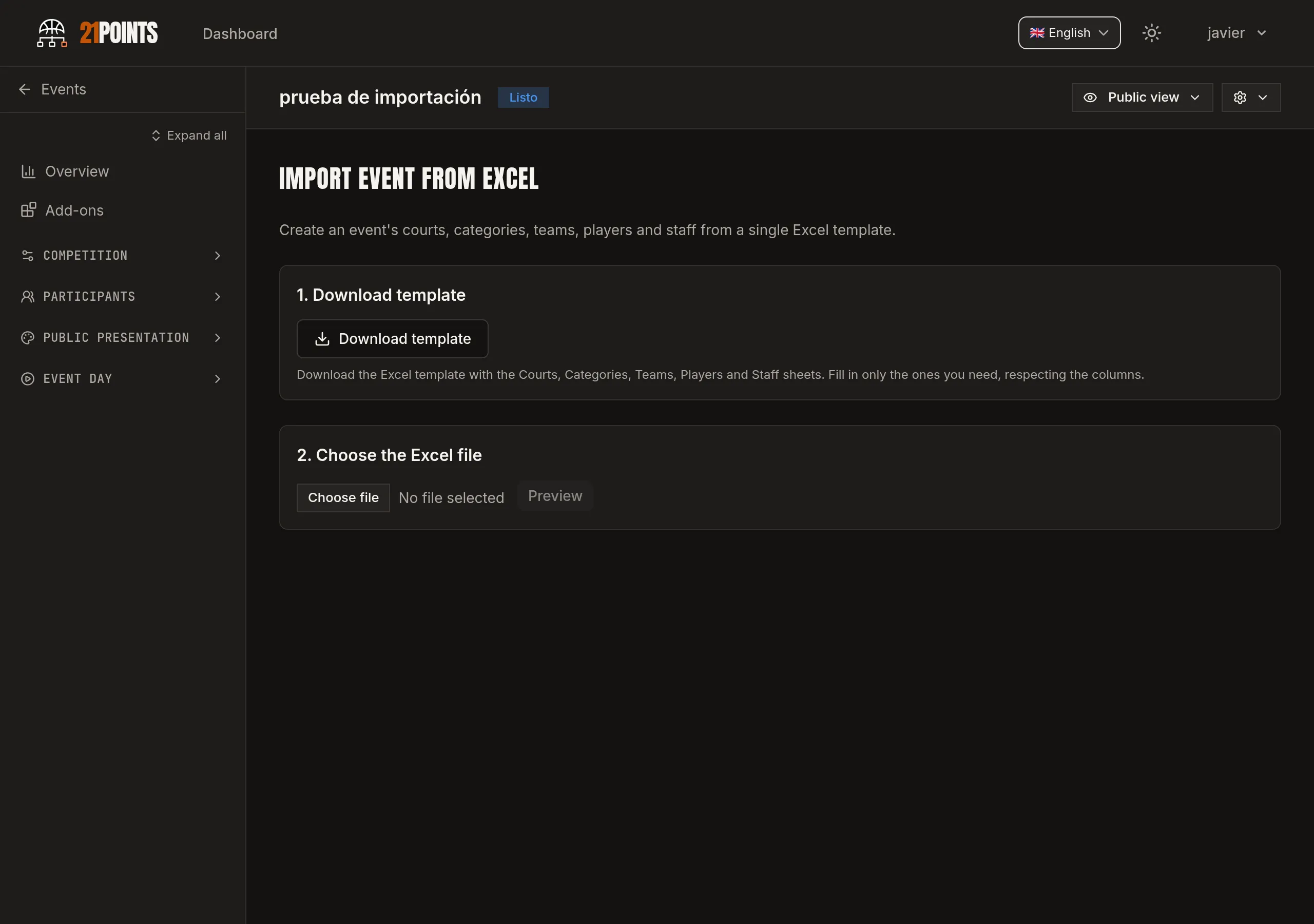
In the event menu, go to Participants → Import data. You land on Import event from Excel, which creates all five things at once: courts, categories, teams, players and staff.
Nothing needs to exist beforehand. You can use it on a brand-new, empty event: the template itself creates the courts and the categories, and then hangs the teams off them.
02Download the template
Click Download template. You get an `.xlsx` generated for that specific event and in your panel's language, with six sheets:
- Instructions — a summary of all this, inside the file itself.
- Courts, Categories, Teams, Players and Staff — one sheet per kind of data, with their columns and with dropdowns in the cells that need them.
Fill in only the sheets you need: empty ones are ignored. If all you're missing is teams, fill in Teams (and Players if you have the rosters) and forget the rest.
Two things about the template worth knowing before you start typing:
- Whatever already exists in the event shows up in grey with an "(already exists)" tag. It's reference only: it won't be created again. You can delete those rows.
- Every sheet ships an example row in blue italics starting with "EXAMPLE ▸". It isn't imported either: delete it or type over it.
03Fill in the sheets
The order you fill them in doesn't matter: 21POINTS always imports in the right order (courts → categories → teams → players → staff), so in the Teams sheet you can safely reference a category you're creating in that same file. Fields marked `*` are required.
Courts
- Name \* — the court name.
- Order — display order. Leave it empty and it's assigned for you.
Categories
- Name \* and Allowed genders \* — one or more of `m`, `f`, `mixed`, comma-separated (e.g. `m, f`).
- Capacity — maximum number of teams (2-1024). Only required if the event uses fixed capacity.
- Min birth year and Max birth year — the category's age range.
- Allowed courts — court names, comma-separated; empty means it can play on all of them.
- Note: only simple categories are imported. Splitting by gender (subcategories) is done afterwards inside the app.
Teams
- Name \* and Category \* — the category must exist in the event or be created in the Categories sheet of this same file.
- Gender — `m`, `f` or `mixed`.
- Email, Tutor (name), Tutor email and Tutor phone — team and legal guardian contact. Optional.
Players
- Team \* — must match a name in the Teams sheet exactly. If it matches none, the player is orphaned and blocks the import.
- First name \* and Last name \*.
- Jersey — optional, but it can't repeat within the same team.
- Date of birth — always day first: `15/03/2005`. The separator doesn't matter (`/`, `-` or `.`), and a proper Excel date cell works too.
Staff
- Full name \* and Phone — the phone is required unless you set Is minor = Yes.
- No. — staff number (1-999, unique within the event). Empty = assigned for you.
- Roles — comma-separated. The Scorer APP uses `referee` and `table` to assign staff to each game.
- Email — optional.
The duplicate rule
This is the rule that saves the most headaches: the import only creates new things, it never overwrites.
- If a court, category or team already exists in the event under the same name, it's skipped and reported as a warning. What you already have is left alone.
- If a name is repeated within the file, that *is* an error and you have to fix it.
That's why you can import several times into the same event without fear of duplicates: rows that are already there are simply skipped.
04Upload the file and check the preview
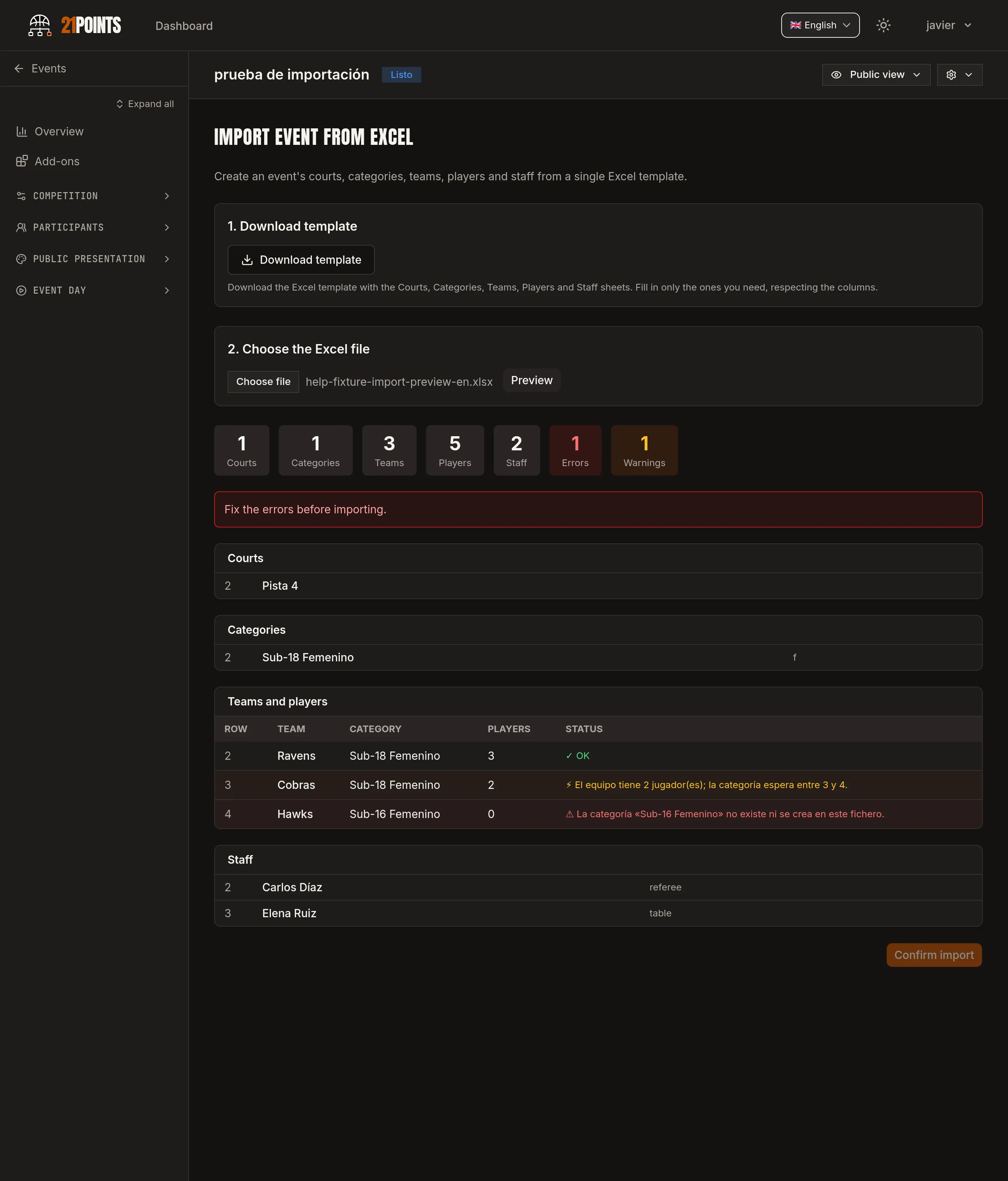
Click Choose the Excel file (it takes `.xlsx` and `.xls`, up to 5 MB) and then Preview. This is where 21POINTS reads your file and shows you what's going to happen. Nothing is saved yet.
At the top you get the count per kind — courts, categories, teams, players, staff — and to the right the errors and warnings. Below, each sheet with its row-by-row detail:
- Errors (red) — block the import. For example: a category that neither exists nor is created in the file, a name repeated within the file, a gender that isn't `m`, `f` or `mixed`, a player with no first name, a jersey repeated in the same team, a malformed email or a staff number already in use.
- Warnings (amber) — don't block anything, they just tell you: something that already exists and is skipped, a birth year outside the category's range, or a team with fewer players than the category expects.
Fix the Excel, upload it again and preview again. As many times as it takes.
05Confirm the import
Once there are no errors left, click Confirm import. Everything is created in one go and you get a confirmation of how many courts, categories, teams, players and people were added.
From there on it's ordinary event data: categories can be split by gender, teams go into the draw and the schedule, and staff is ready to be assigned to games.
What the import does NOT bring
The template covers the event structure and the participants. It does not bring team logos, registration payments or consent signatures: that lives in the online registration flow. If you need to charge the fee or collect signatures, open the registration form and use the import only for what came in some other way. The two happily coexist in the same event.
There's also a teams-and-players-only importer under Participants → Teams → Import teams, with its own shorter template. That one *does* need the categories to exist already: use it when all you have left is adding teams to an event that's already set up.
Frequently asked questions
Do I have to create the categories and courts before importing?
No. The Import data template has its own Courts and Categories sheets and creates them for you; you can start from a completely empty event. What does need existing categories is the short importer under Teams → Import teams.
Can I import several times into the same event?
Yes. The import only creates new items: anything that already exists under the same name is skipped with a warning, never duplicated or overwritten.
What if I get it wrong? Can I undo an import?
There's no undo button, but nothing is saved until you click Confirm import — that's exactly what the preview is for. If something slips through, edit it or deactivate it from the relevant list.
Do I have to fill in every sheet?
No. Empty sheets are ignored. Fill in only what you need — for instance, just Teams and Players if the courts and categories are already set up.
What are the grey rows and the "EXAMPLE ▸" row?
The grey ones are what already exists in your event, there purely for reference; they won't be created again. The blue italic row starting with "EXAMPLE ▸" shows the expected format and isn't imported either. You can delete both or type over them.
Does a CSV work?
No. The importer takes .xlsx and .xls, up to 5 MB. If you have a CSV, open it and copy the columns into the template.
I downloaded the template in another language — is it still valid?
Yes. 21POINTS recognises the template sheets in any of its languages, so a file downloaded by a colleague whose panel is in another language reads just the same. The date of birth always goes day first, whatever the separator.
Can I import categories already split by gender?
Not directly: the import creates simple categories. Splitting by gender (Women / Men within the same category) is done afterwards from the app.
Can I import teams without players?
Yes. Leave the Players sheet empty and complete the rosters later from each team's page.