Before you can create your first tournament you need your own space on 21POINTS: your subdomain, your admin panel and your organizer account. This guide walks through the whole signup, which emails you'll get at each stage and what to do with each one. All in all it's about 3 minutes of form filling plus a review wait, usually under 24 hours.
- YOUR OWN SUBDOMAIN
- REVIEWED IN <24 H
- 4 EMAILS
- TWO-FACTOR
- 1 Fill in the request
- 2 Confirm your email
- 3 Wait for approval
- 4 Log in to your panel
- 5 Verification code
- 6 Create your first tournament
01Fill in the access request
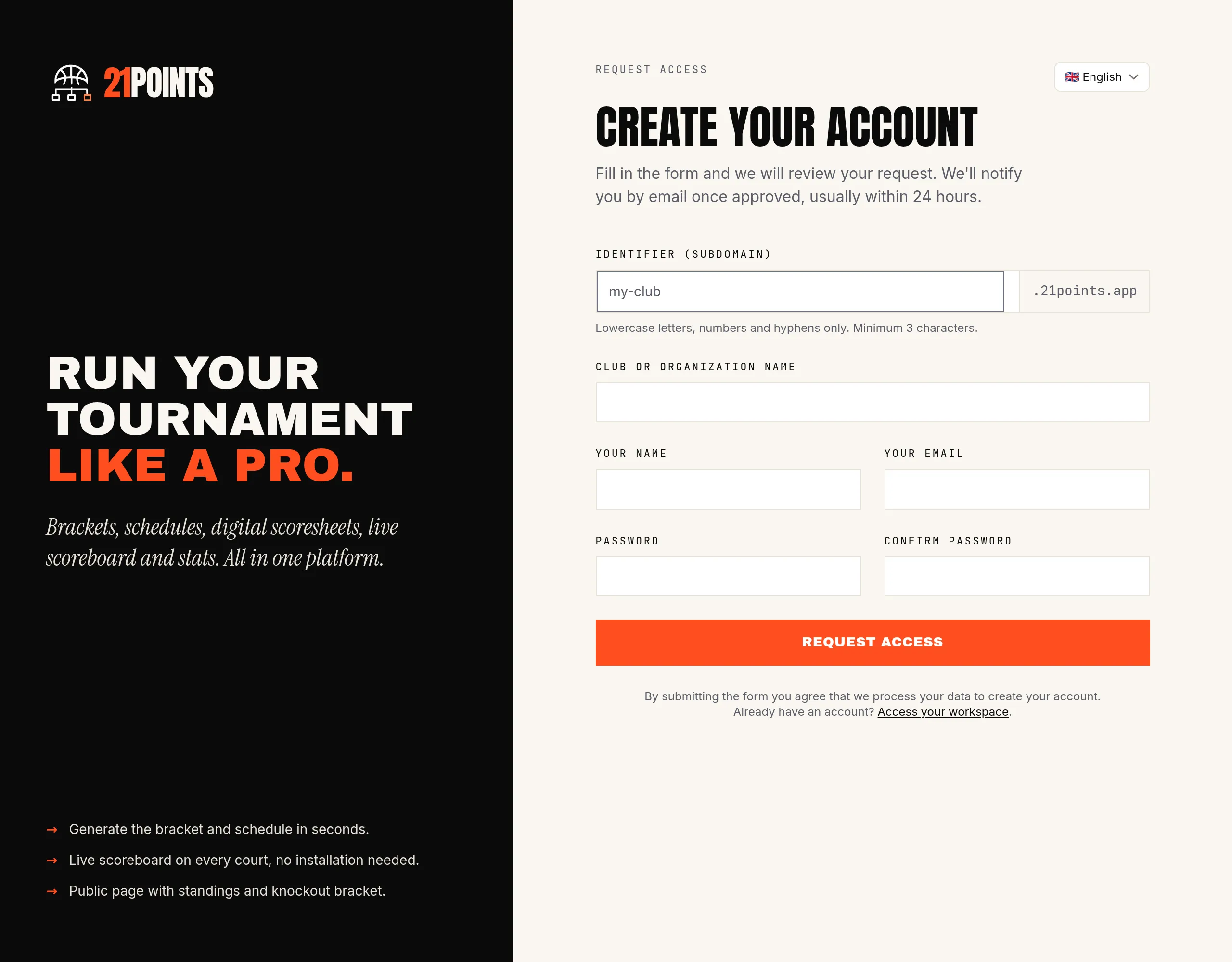
Signup starts at 21points.app/register. No card and no payment at this stage: you're only requesting your space. We ask for five things:
- Identifier (subdomain) — your space's address, `your-club.21points.app`. Lowercase letters, numbers and hyphens only, 3 characters minimum. The form tells you instantly whether it's free. Choose carefully: this is the URL you'll share with teams and the public.
- Club or organization name — the visible name (you can change it later).
- Your name — you'll be the account owner.
- Your email — every signup email goes to this address, so use one you can already access.
- Password — at least 8 characters, with letters and numbers. This is the one you'll log in with: no new password is generated later on.
If the form isn't in your language, switch it with the selector in the top right: your signup emails will arrive in that language.
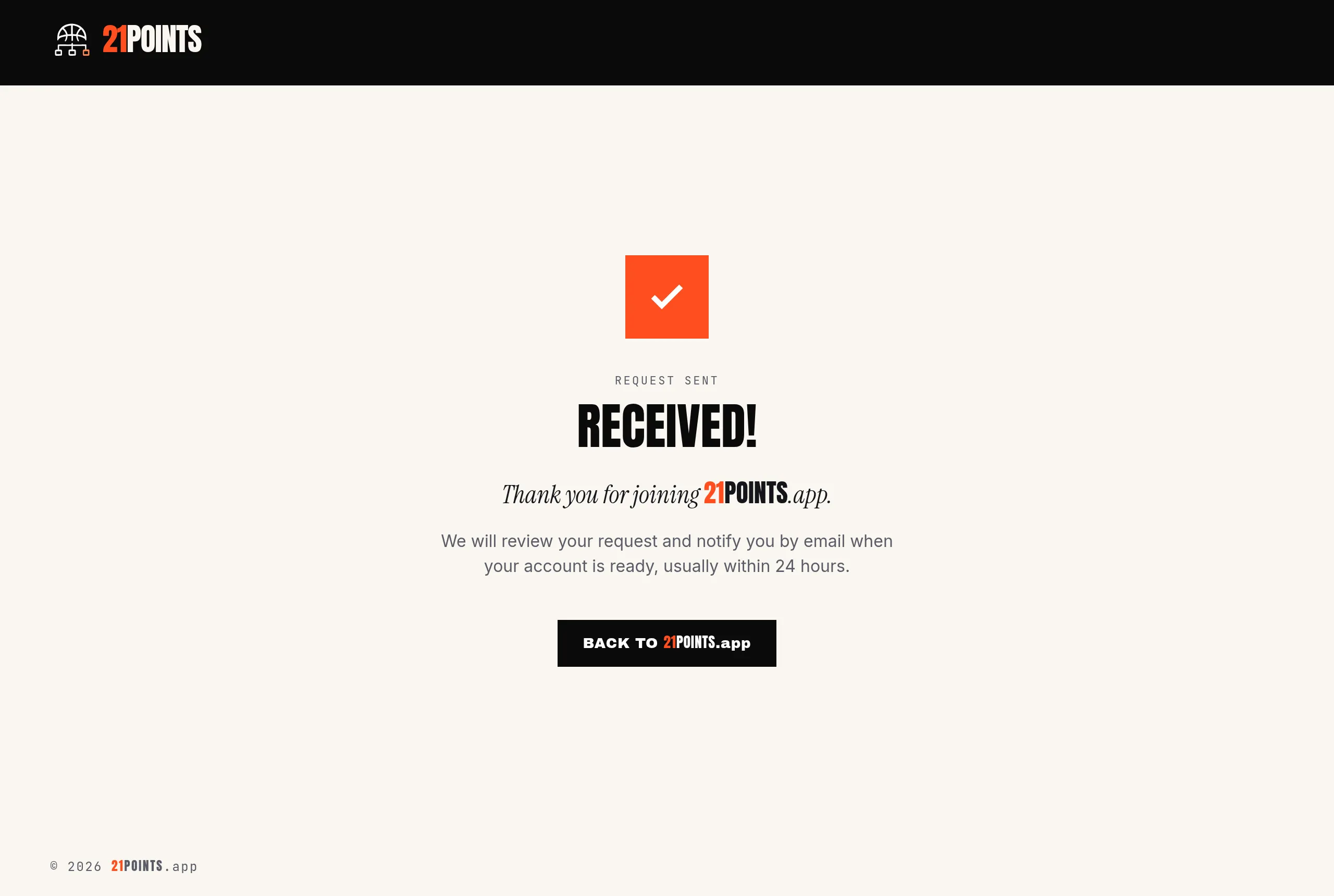
Once you submit the form you'll see the confirmation screen. From here on, the process continues by email.
02Confirm your email address
As soon as you submit the request, two emails arrive:
- "We've received your request" — the acknowledgement. Nothing to do with it.
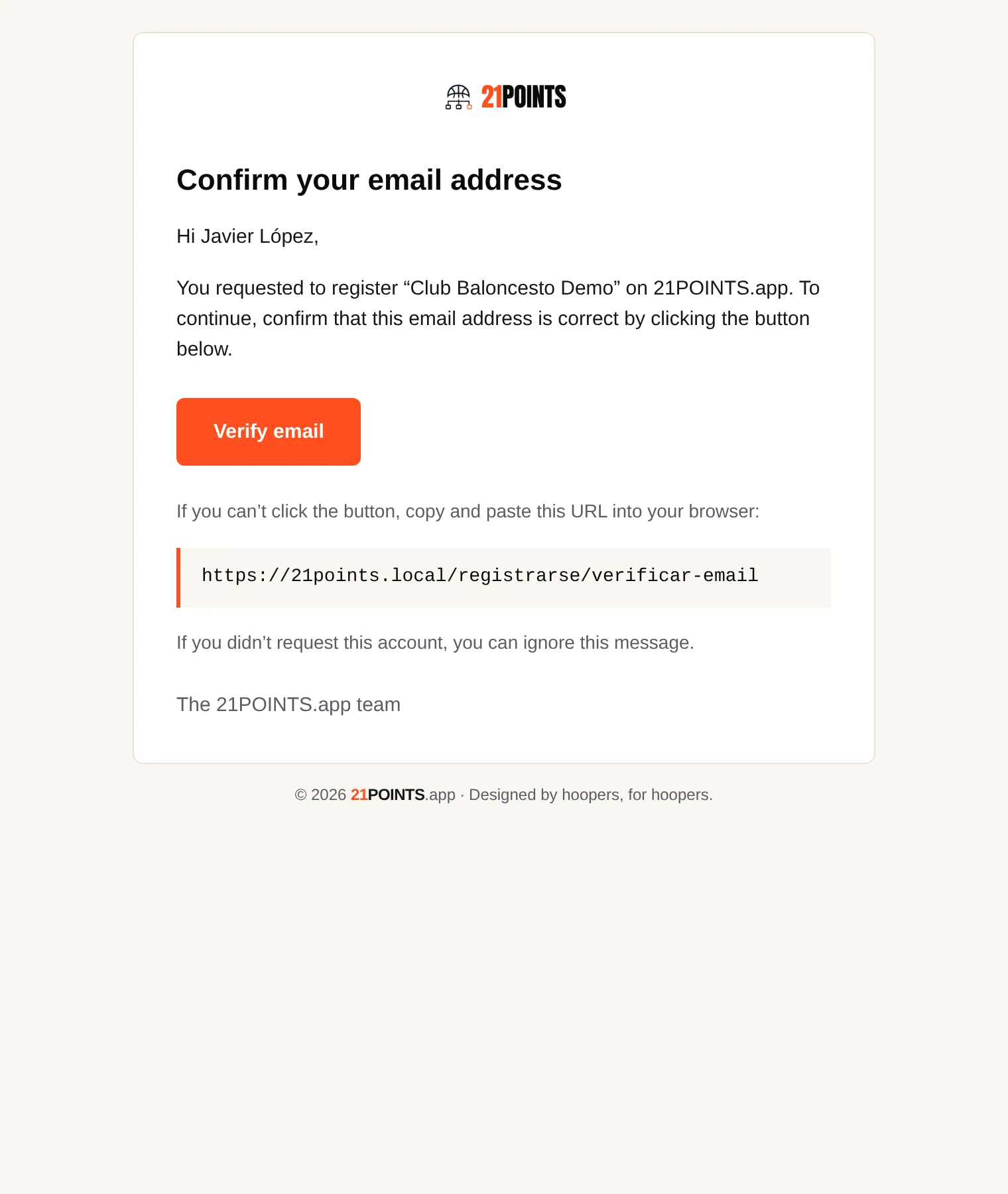
- "Confirm your email address" — this one needs action: click Verify email (or paste the link into your browser).
This step is mandatory. Until you confirm the address, your request can't be approved. If nothing shows up within a few minutes, check your spam folder and make sure you typed the address correctly.
03Wait for approval
With your email verified, we review the request by hand (it's an anti-fraud filter, not an interview). Usually within 24 hours you'll get one of these two emails:
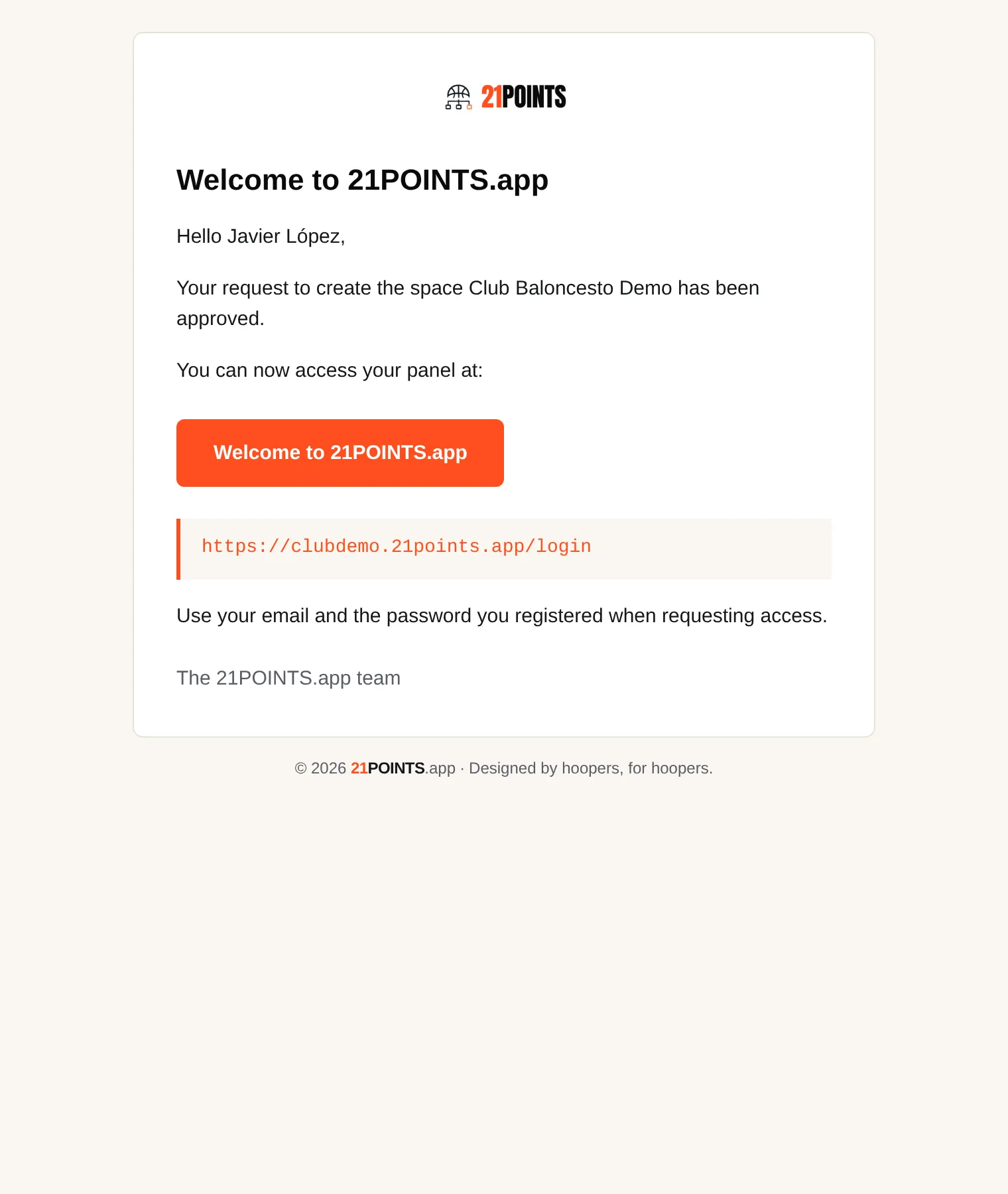
- "Your request has been approved" — your space exists. It includes the direct link to your panel.
- "About your request on 21POINTS.app" — it couldn't be approved, with the specific reason. You can reply to that same email to sort it out.
There's nothing to do while you wait: no need to revisit the form or sign up again.
04Log in to your panel for the first time
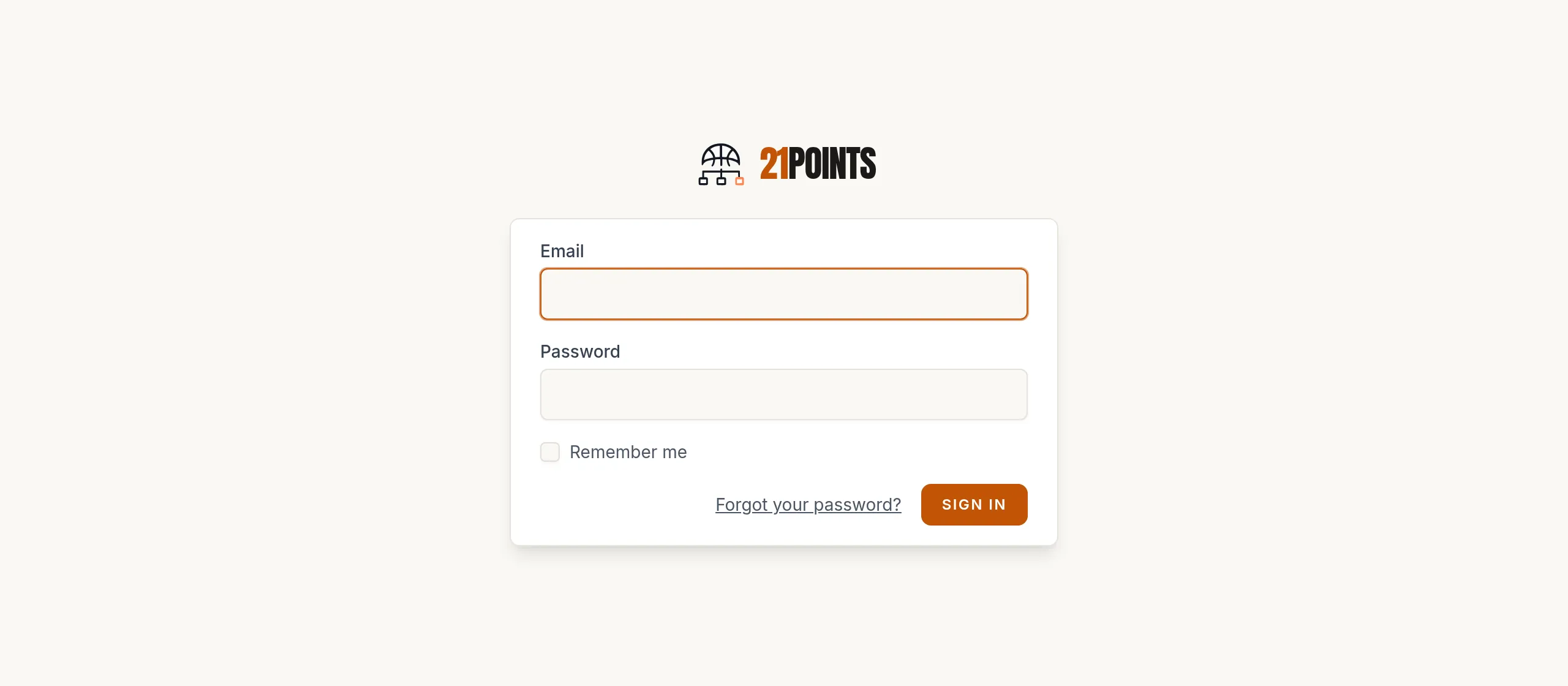
The approval email carries your access address: `https://your-club.21points.app/login`. Bookmark it.
Log in with your email and the password you chose in step 1. We never email you a password: if you can't remember it, use Forgot your password? on that same screen.
05Enter the verification code
The owner account has mandatory two-factor authentication. The first time you enter the panel we ask for a 6-digit code sent to your email; it's valid for 10 minutes and you can request a new one if it expires.
Once verified, the device is marked as trusted for 24 hours, so you won't be asked for a code on every login. If you'd rather not depend on email, under Account you can enable an authenticator app (TOTP) and use its codes as your second factor.
06You're in: create your first tournament
Your space starts empty: no events, no teams and no time limit to get going. From Events → New event you set up your first competition — or hit Generate demo tournament if you'd rather see a complete example before touching anything.
Carry on with the How to create your first tournament guide.
Frequently asked questions
How long does approval take?
Usually under 24 hours from the moment you confirm your email. The clock starts with the verification, not with the form submission: if you don't confirm the address, the request just sits there.
How many emails will I get, and which need action?
Up to four. Two when you submit the form ("We've received your request", informational, and "Confirm your email address", which you do need to click), and one when the review is resolved: "Your request has been approved" or "About your request" with the reason for the rejection. After that, the verification code every time you log in on a new device.
Can I change the subdomain later?
The identifier is the basis of your address and isn't meant to be changed: write to us if you picked the wrong one. If you want your own address along the lines of `tournaments.yourclub.com`, there's the custom domain add-on (see Available add-ons).
No emails are arriving — what do I do?
Check spam and junk, and that the address is spelled correctly. If you're using a corporate address with strict filters, try another mailbox and submit the request again: the identifier you had reserved stays available to you while the request is pending.
I already have an account but can't remember my space's address
Go to 21points.app/access, enter your email and we'll send you the login links for the spaces tied to that address.
Is there anything to pay to sign up?
No. Signing up and your space are free, and you can create your first tournament without entering payment details. Plans and extras are taken out later, when you need them.
Can I sign up my club colleagues?
Yes. Signup creates the owner account; from the panel you can invite more people from the club with narrower permissions (court coordinators, for instance) without each of them having to register a space.