Creating a 3x3 basketball tournament with 21points takes a few minutes. This guide covers the whole process, from setting up the event to generating the schedule. To open registrations you only need steps 1, 2 and 3: the rest can wait.
- 1 Create the event
- 2 Create the categories
- 3 Publish the event
- 4 Add courts
- 5 Competition system
- 6 Generate games and schedule
01Create the event
In Events, click New event. The first thing you choose is the competition mode, which only prefills values (everything stays editable afterwards, also per category):
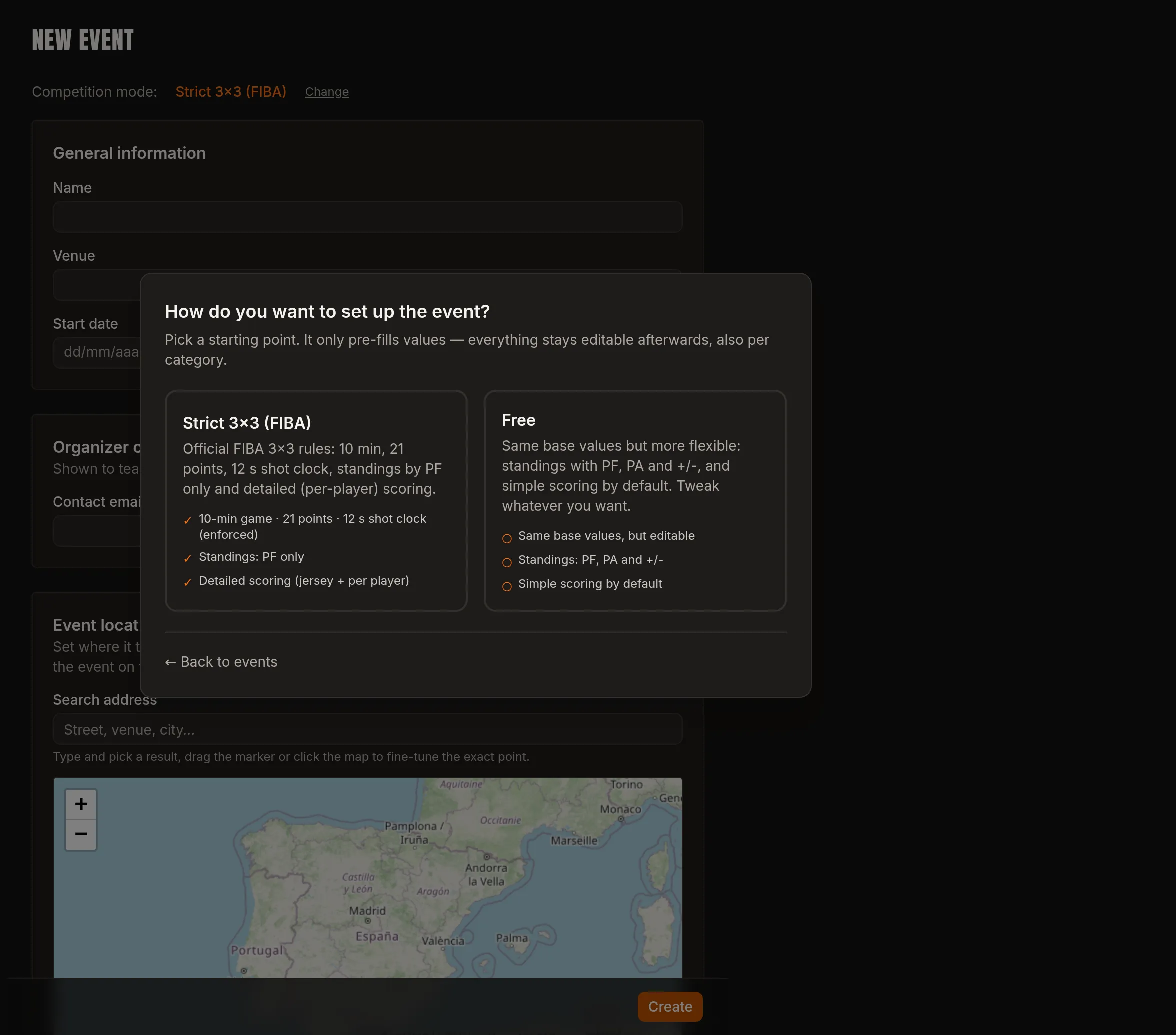
- Strict 3×3 (FIBA) — official rules: 10-minute game, 21 points, 12-second shot clock, standings by games won and points for only, with detailed per-player scoring.
- Free — the same base values, but editable: standings by PF, PA and point difference, and simple scoring by default.
Then you fill in the form, grouped into blocks:
- Event details — name, venue, date and contact email (teams contact you, never 21POINTS).
- Location — search for the address and fine-tune the exact spot on the map.
- Scheduling — daily start and end times, game duration, breaks, time zone and event language. These values determine how many games fit.
- Registrations — open registration (recommended, no cap per category) or fixed capacity per category.
- Registration fee — default fee and whether it is charged per team or per player. Leave it at 0 if the event is free.
Click Create and your event is set up.
02Create the categories
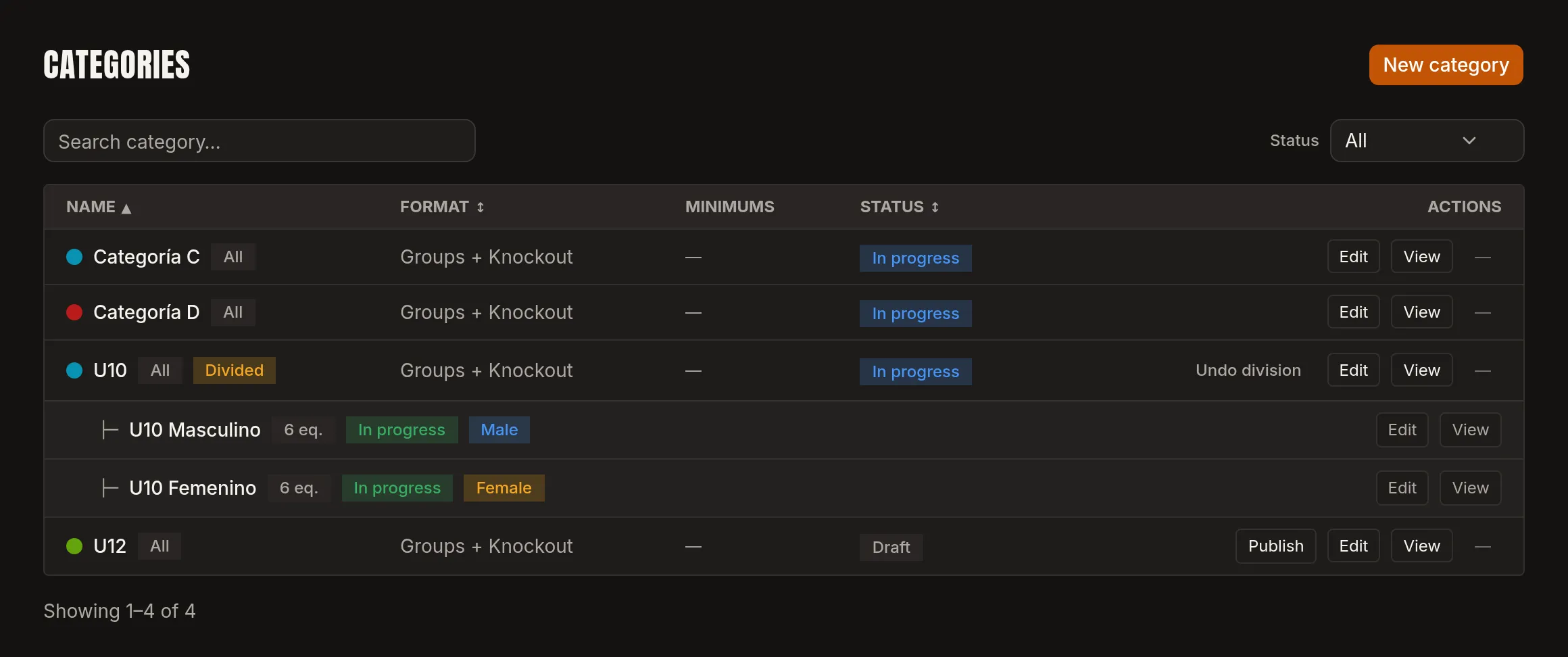
This is the only must-do before opening registrations. From New category, add your event's categories (by age, level or whatever you need). Each category can be split by gender into Women's and Men's, and has its own status: it starts as a Draft and goes live with Publish.
03Publish the event
With the categories published, publish the event. From that moment it appears on the public site and teams can register on their own; you validate the requests from the admin panel, no spreadsheets involved.
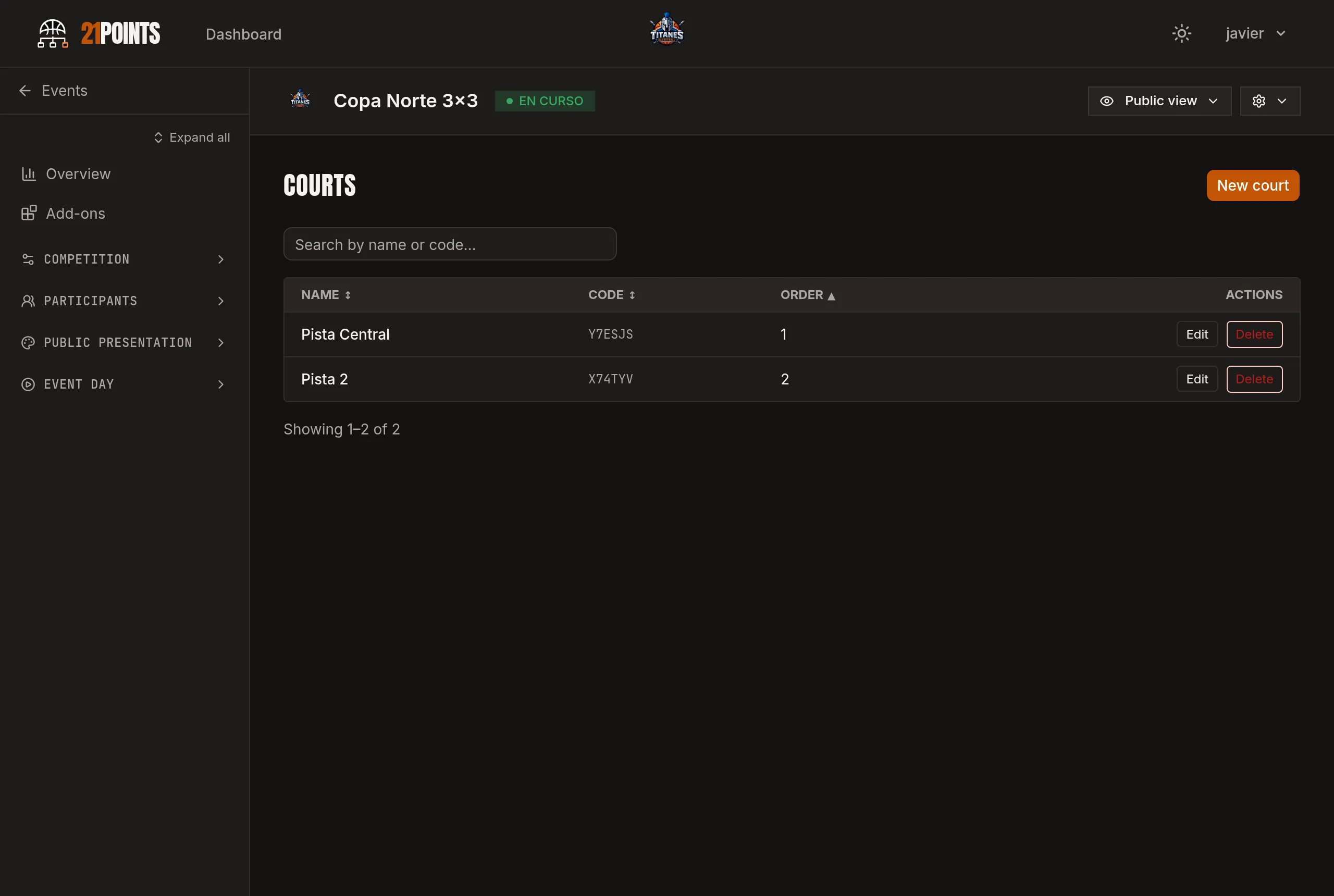
04Add the courts
In Courts, add the courts you have available. The event capacity is calculated from courts × days × slots per day, so this is the figure that really sets how many teams fit.
05Choose the competition system
The format is configured per category, not for the whole event: that way you can run a league in U10 and a knockout bracket in senior. With open registration, the usual approach is to pick it when registration closes, once you know how many teams signed up. The options are:
- League — round robin.
- League + Knockout.
- Groups + Knockout — group stage and then a bracket.
- Knockout — straight bracket.
Careful: if you later save a different format, the bracket is regenerated and that category's games are deleted. The app warns you and asks for confirmation.
06Generate the games and the schedule
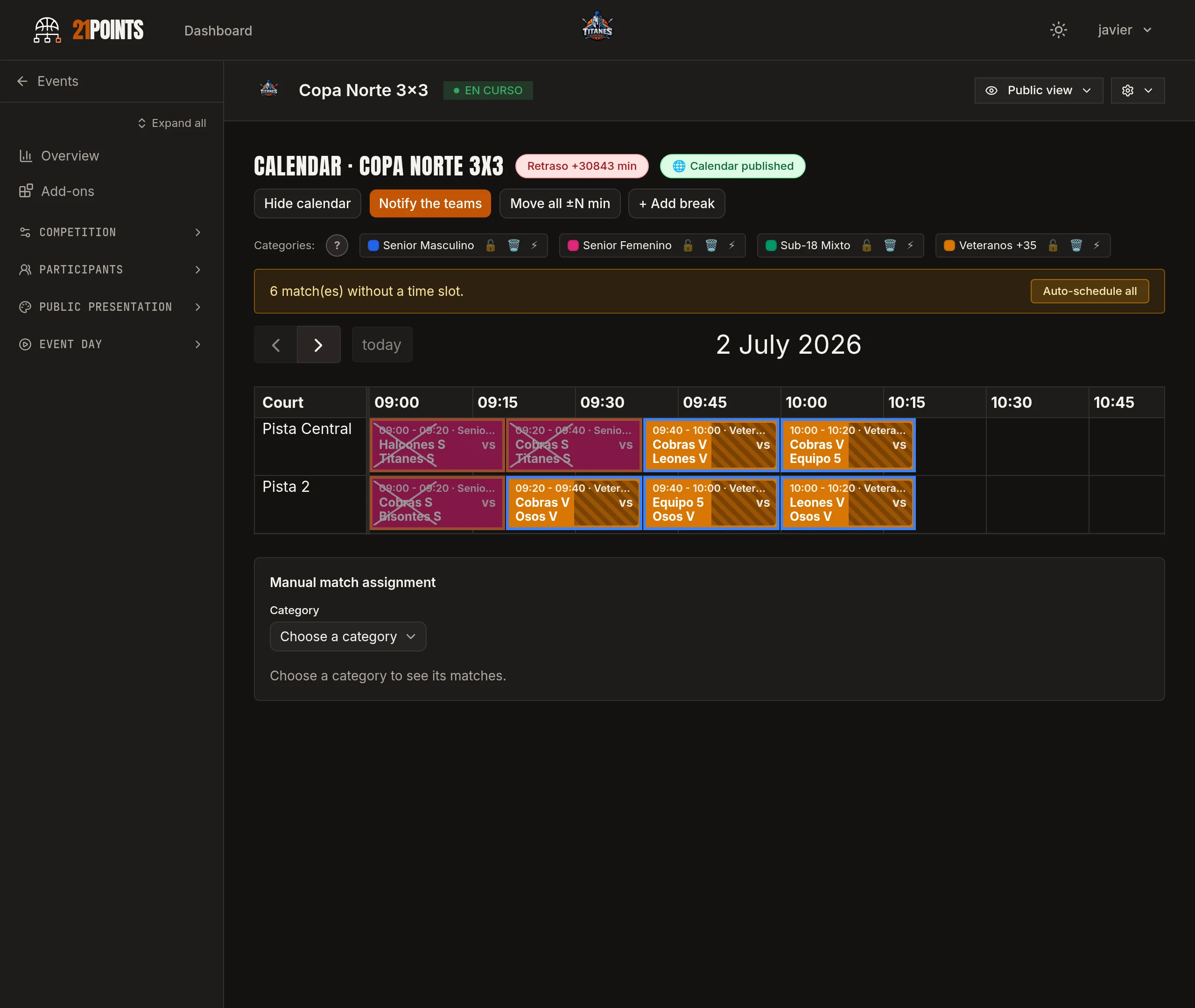
First generate the bracket for each category, with all the registered teams; then generate the event schedule, which spreads the games across courts and time slots (you can use Auto-distribute or adjust it by hand).
07Before tournament day
Two things are worth doing: assigning staff to the games and reviewing the event rules. The event Summary has the Next steps checklist, which reflects the real status and tells you what's missing.
Frequently asked questions
What's the minimum I need to open registrations?
Create at least one category and publish the event. Courts, teams, schedule and staff are best sorted before the tournament, but you can set them up whenever you like (in small events, even at the last minute).
How many teams can I register in a 3x3 tournament?
With open registration there is no cap per category. If you prefer a limit, choose fixed capacity per category. Real capacity is set by courts, days and slots per day.
Can I change the competition system once it's set?
Yes, but saving a new format regenerates the bracket and deletes that category's existing games, including scheduled or played ones. You are asked to confirm first.
How many days can an event last?
Up to 2 days. For longer events there's the extra days add-on, bought per event.
Are results updated live?
Yes. With the Scorer APP, every basket and foul is recorded courtside and the scoreboard, standings and bracket update in real time.